

Table of Contents
- Why Ergonomic Dual Monitor Setup Matters
- Step 1: Position Your Primary Monitor at Eye Level
- Step 2: Place Your Secondary Monitor Correctly
- Step 3: Set Viewing Distance and Screen Depth
- Step 4: Adjust Monitor Angle and Tilt for Comfort
- Best Desk Accessories for Posture Support
- DSE Assessment Workstation Requirements and Cable Management
- Common Setup Mistakes to Avoid
- Frequently Asked Questions
Last Updated: October 2, 2026
Why Ergonomic Dual Monitor Setup Matters
Neck pain from desk work is common. Most people don't realise their monitor placement is the culprit. A poor dual monitor workstation forces your head forward, strains your shoulders, and leaves you exhausted by day's end.
Fixing your setup takes minutes, not weeks. Proper ergonomic positioning prevents repetitive strain injury and keeps you comfortable for eight-hour shifts.

Step 1: Position Your Primary Monitor at Eye Level
Your primary monitor should sit directly in front of you with the top of the screen at or slightly below eye level.
Position the screen 50-70 centimetres away to reduce eye strain and let you see the full screen without moving your head.
Setup checklist for your primary display:
- Top of screen aligns with eye level (or 5 centimetres below)
- Screen sits directly in front of your body, not off to one side
- Distance is arm's length away (about 60 centimetres)
- Screen tilts slightly upward (about 15 degrees) so you look slightly down
A monitor arm helps. It lets you adjust height without stacking books or buying a new desk. The Health and Safety Executive's guidance on display screen equipment recommends adjustable positioning as a key control for workstation ergonomics.
Step 2: Place Your Secondary Monitor Correctly
The secondary monitor goes to the side, not behind the primary one. Position it at the same height and distance as your main screen when both monitors are identical in size.
Standard dual-monitor layouts:
Two common layouts work well for matched monitors: the V-shape (concave) and the side-by-side arrangement.
Placement rules for matched monitors:
- Position at same height as primary monitor
- Angle toward you slightly (10-20 degrees) to reduce head rotation
- Keep both screens at equal viewing distance
- Minimise bezel gap between screens
Adapting placement for mixed monitor sizes:
For a smaller secondary monitor, position it slightly lower so the centres of both screens align at eye level.
Secondary monitor placement rules for different workflows:
- Reference and communication (email, chat, Slack): Position to the non-dominant side, slightly further away.
- Dual-work tasks (coding on primary, documentation on secondary): Use the V-shape concave layout with both monitors at equal distance and height.
- Content creation (video editing, design): Position directly to the side at the same height.
Avoid placing the secondary monitor so far that you must turn your head more than 30 degrees to see it comfortably.
Step 3: Set Viewing Distance and Screen Depth
Extend your arm straight ahead; your fingertips should nearly touch the screen (roughly 50-70 centimetres). Both monitors should sit at the same distance from your body to prevent constant eye refocusing, which causes eye fatigue and headaches.
Your desk should be at least 75 centimetres deep to position screens at proper distance while keeping your keyboard and mouse within easy reach.
Viewing distance checklist:
- Extend arm straight ahead; fingertips nearly touch screen
- Both monitors sit at equal distance from your body
- Screen sits at least 50 centimetres away (farther for larger monitors)
- Desk is deep enough to accommodate proper spacing
If your desk is too shallow, move it away from the wall or use a corner desk configuration. The extra space prevents you from hunching forward, which is one of the most common causes of neck strain in home offices.
Step 4: Adjust Monitor Angle and Tilt for Comfort
Tilt each monitor upward 10-15 degrees to align with natural eye movement and reduce glare.
Position monitors perpendicular to windows to avoid direct light reflection. If glare persists, use a monitor hood or anti-glare screen protector to prevent eye fatigue and headaches.
Monitor angle and tilt settings:
- Tilt screen upward 10-15 degrees from vertical
- Angle both monitors toward the centre of your body
- Avoid direct window light hitting the screen
- Position monitors perpendicular to light sources
The goal is a focal point where both screens sit comfortably in your view. You should be able to shift your gaze between monitors without moving your head or neck. This reduces the repetitive strain that builds over hours of work.
Best Desk Accessories for Posture Support
Your monitor setup is only half the solution. Posture support accessories prevent the slouching that happens when you're focused on work.
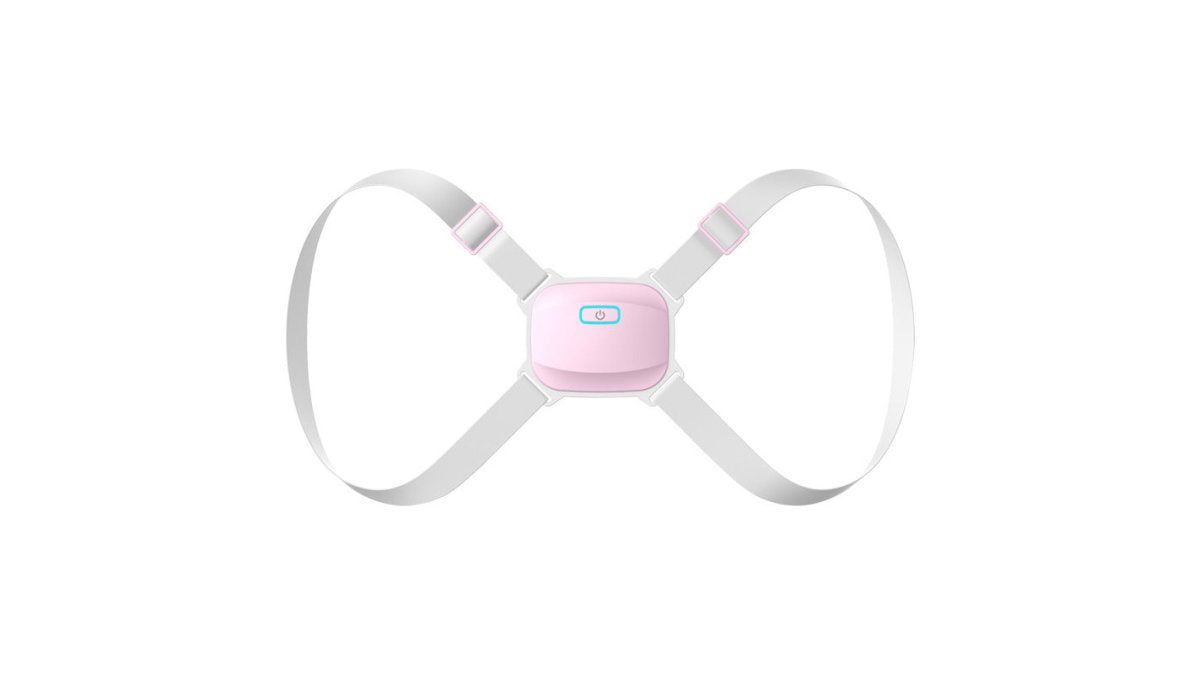
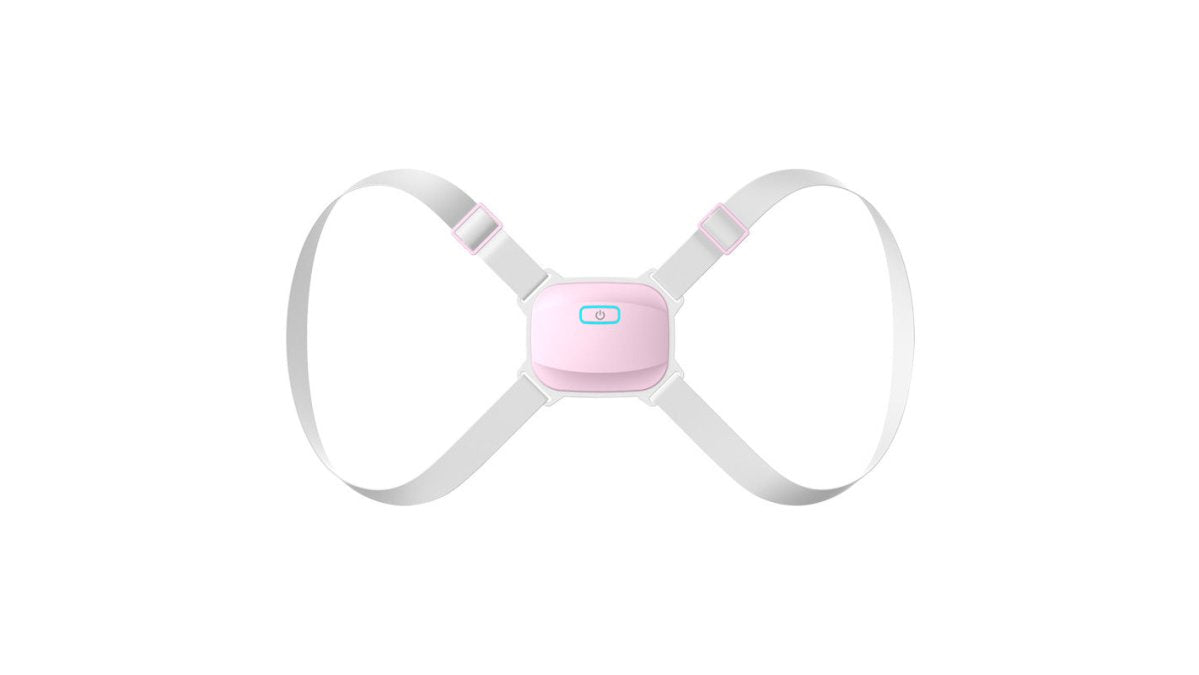
Smart Posture Corrector with Vibration Alert - Professional →
A posture corrector helps. The Smart Posture Corrector with Vibration Alert from Indira Enterprises Ltd provides real-time feedback when you slouch. The device vibrates gently to remind you to sit upright, and the app tracks your progress over time. At £33.48, it's an affordable investment in long-term spinal health.
For those who experience eye strain from extended screen time, the Eye Massager with Heat and Vibration from Indira Enterprises Ltd combines heat therapy, air pressure, and vibration to relieve tension.
An ergonomic chair with lumbar support, adjustable height, and armrests is essential. Your feet should rest flat on the floor and your thighs parallel to the ground. Position your keyboard and mouse so your elbows bend at 90 degrees and your wrists stay neutral.
Essential posture support items:
- Ergonomic office chair with lumbar support
- Keyboard and mouse at elbow height
- Posture corrector device for real-time feedback
- Eye massager for strain relief during breaks
- Monitor arms for height adjustment
- Desk at proper height (elbows at 90 degrees when seated)
DSE Assessment Workstation Requirements and Cable Management
Display Screen Equipment (DSE) regulations in the UK require workstations to avoid glare and reflection, provide adequate lighting, support your back, and allow your arms to rest at 90 degrees. One critical element often overlooked is cable management.
Why cable management affects ergonomics:
Cables create physical obstacles that disrupt neutral posture. Visible cables tempt you to lean or twist to reach plugs. Tangled cables under your desk force awkward bending.
For a dual monitor workstation ergonomic setup, cable management is critical. Each monitor needs power and video cables, plus keyboard, mouse, and other peripherals, 6-10 cables competing for space without organisation.
Practical cable management for dual monitors:
Practical cable management for dual monitors:
Workstation assessment checklist:
- Monitors at correct height and distance
- Adequate lighting without glare
- Chair supports your back and allows 90-degree arm position
- Desk height lets your forearms rest parallel to the ground
- Monitor cables routed vertically behind each screen
- Peripheral cables separated from monitor cables
- Cable tray or management system under desk prevents tangling
- Power strip positioned within reach but out of primary focal area
- Keyboard and mouse within easy reach
- No cables crossing your desk surface or creating trip hazards
- No obstacles forcing you to twist or reach awkwardly
Common Setup Mistakes to Avoid
Most people position their secondary monitor too high or too far away.
Monitors placed side-by-side without angle create a wide focal area. Your eyes must move more to see both screens.
Another mistake: placing the monitor too close. This causes eye strain and headaches.
Ignoring glare is a common error. Overhead lights reflecting off your screen force your eyes to work harder.
Slouching happens when your setup doesn't support neutral posture. A posture corrector device provides real-time feedback, helping you build better habits.
Mistakes to avoid:
- Secondary monitor too high or too far away
- Monitors placed parallel without angle
- Screen too close (under 50 centimetres)
- Ignoring glare and reflection
- Slouching due to poor chair support
- Cables creating obstacles that disrupt posture
- Keyboard or mouse at wrong height
- Not taking breaks from screen time
The fastest fix is a monitor arm.
Frequently Asked Questions
What is the most ergonomic way to set up dual monitors?
Position your primary monitor directly in front of you at eye level, roughly 50-70 centimetres away. Place your secondary monitor to the side at a slight angle, tilted inward by 30 degrees. Keep the top of both screens at or slightly below eye level, and maintain a neutral neck posture. This arrangement reduces neck rotation, minimises eye strain, and supports healthy shoulder alignment during extended work.
How high should my monitors be for optimal ergonomics?
The top of your monitor should sit at or just below eye level when you're seated with your back straight and shoulders relaxed. Typically, this means the centre of the screen is 15-20 centimetres below your natural eye line. If your monitors are too low, you'll tilt your head downward, straining your neck and upper back. Use monitor arms or adjustable stands to achieve the correct height.
How do I prevent neck pain when using two screens?
Neck pain from dual monitors usually results from excessive head rotation or forward head posture. Keep your primary monitor directly ahead, minimise the angle of your secondary screen, and ensure both are at eye level. Take regular breaks every 20-30 minutes, and consider a smart posture corrector with vibration alerts to remind you when you slouch. Proper desk depth and arm reach also prevent compensatory neck tension.
What viewing distance should I maintain for dual monitors?
The recommended viewing distance for most monitors is 50-70 centimetres (arm's length). This distance reduces eye fatigue and allows you to see both screens comfortably without excessive head movement. If your screens are too close, you risk eye strain and headaches. If they're too far, you may lean forward or squint, creating neck and shoulder tension. Adjust based on your monitor size and screen resolution.
Setting up a dual monitor workstation ergonomically prevents the neck pain and eye strain that plague desk workers. The steps above take less than an hour to implement. Start with monitor positioning, add posture support accessories, and assess your workspace against HSE guidance. Indira Enterprises Ltd's posture corrector and eye massager products make it easy to maintain good habits once your setup is correct. Small changes now prevent chronic pain later.


Leave a comment
This site is protected by hCaptcha and the hCaptcha Privacy Policy and Terms of Service apply.